WordPress Guide · WordPress / SEO & Speed
Get your WordPress site found, and fast
Why Google can't find a new site, how to ask it to look again in Search Console, six things to do after launch, and where to start when it's slow.
· 6 min read · by Hadi Vahidi
A new WordPress site can be finished, live and still invisible. This guide collects three of my short videos on getting found and getting fast, with the steps written out in full, plus the Search Console walk-through that one of the reels promises.
01 Google can't find your site? Check these two first
1. The box that hides a whole site
Open Settings › Reading and look at Search engine visibility. If Discourage search engines from indexing this site is ticked, WordPress adds <meta name='robots' content='noindex,nofollow' /> to every page, which asks search engines to leave the whole site out. It is often ticked while a site is being built and then forgotten at launch. Untick it and press Save Changes.

2. A real title and description for every page
Your page title and meta description are what Google often shows for your result: the blue line and the text under it. WordPress does not give you a description field on its own, so an SEO plugin such as Yoast or Rank Math adds both fields to every page. Write a title that says what you do and where ("Emergency Plumber in Leeds"), and a description a person would want to click.
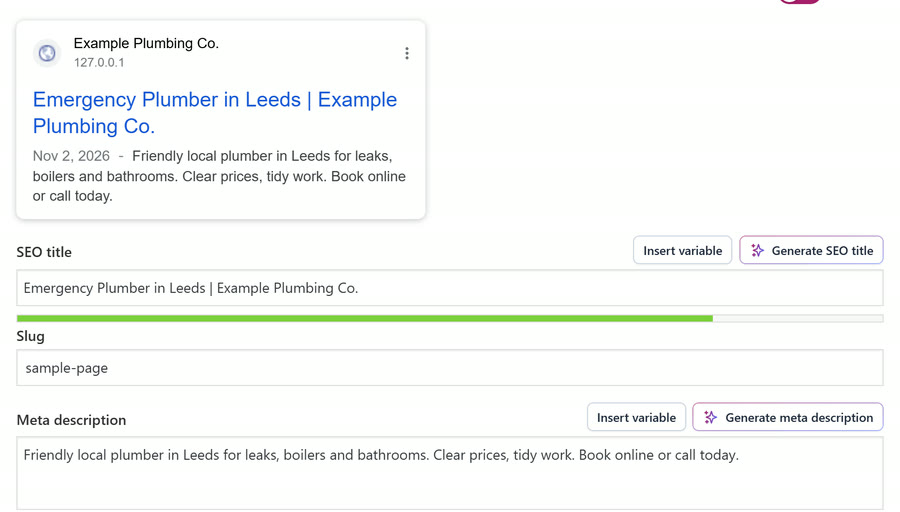
This reel ends on "Do you know how to do it in Search Console?" That is the next section.
02 Ask Google to look again, in Search Console
Fixing the two settings above does not bring Google back on its own; it will notice at its next visit, which can take a while. Search Console is Google's free tool for telling it about your site, and for seeing what it thinks of it.
- Add your site. Go to search.google.com/search-console and add a property. A Domain property covers every version of your address but needs a DNS record; a URL prefix property can be verified with a code that most SEO plugins have a field for.
- Submit your sitemap. In the Sitemaps report, enter your sitemap's address:
sitemap_index.xmlwith Yoast or Rank Math,wp-sitemap.xmlwith neither. Google then shows when it read the sitemap and any errors it found. - Request indexing for your key pages. Paste your home page's address into the search bar at the top (the URL Inspection tool) and press Request indexing. Do the same for your main service pages.
- Then wait, and check back. Google says indexing "typically takes only a day or so, but can take much longer in some cases", and that a request "does not guarantee that the page will appear". There is a daily limit on requests, so save them for the pages that matter.
03 Your site is live: six things to do next
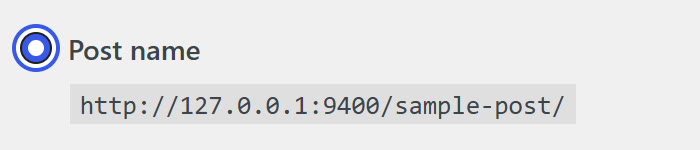
- Readable addresses. In Settings › Permalinks, choose Post name, so a page lives at
/emergency-plumbing/instead of a date or a number. It is best done before Google has indexed the old addresses; if you change it later, redirect the old ones (step 5). - Submit your sitemap in Search Console, as in section 02.
- One SEO plugin, never two. Two SEO plugins can both print titles, descriptions and sitemaps, so your pages end up with doubles. Pick one and delete the other.
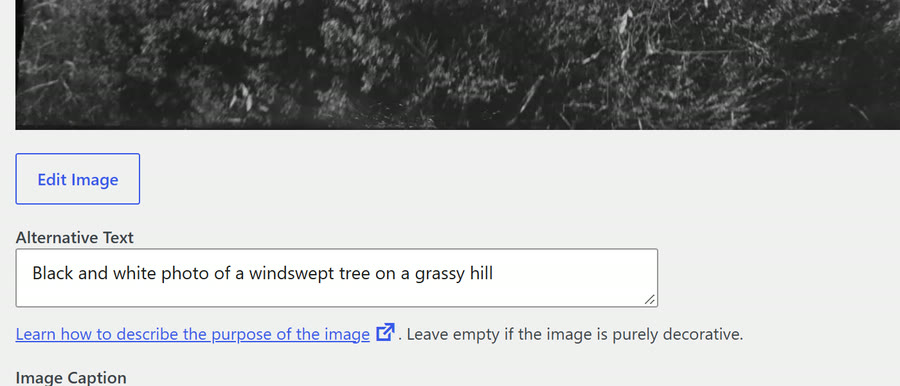
- Alt text on every image. Open Media, click an image and fill in Alternative Text: say what the photo shows. It helps people using screen readers, and it tells Google what the picture is.
- Moved a page? Redirect it. Send the old address to the new one with a permanent (301) redirect, so links and Google's record follow it. A plugin such as Redirection does this, as does Yoast Premium.
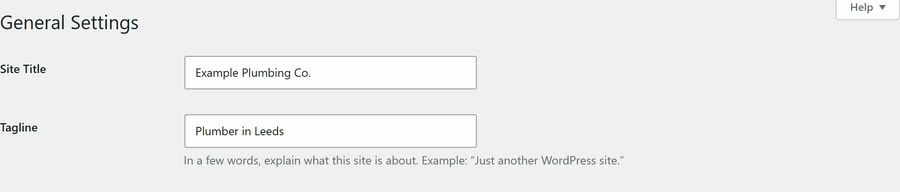
- A real site title and tagline. In Settings › General, replace anything left over from the install with your business name and a line on what you do and where.

This reel ends on "Is your site slow? Do you know where to start?" That is the next section.
04 Slow site? Start here
- Measure first, on mobile. Run your address through PageSpeed Insights and read the mobile result: that is the one that matters most, and its list tells you what to fix first.
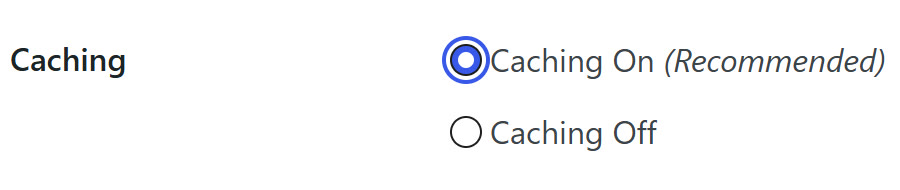
- Turn on caching. A caching plugin such as WP Super Cache, or your host's own caching, serves a ready-made copy of each page instead of building it for every visitor.
- Shrink your images, and serve WebP. Large photos straight off a phone are the usual reason a page is heavy. WordPress accepts WebP uploads, and image plugins can convert and resize what you already have.
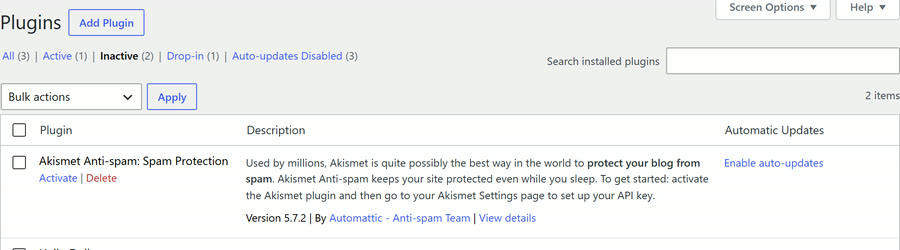
- Delete the plugins you do not use. An active plugin you do not need still runs on every page. Deactivate it, check the site, then delete it.
- Ask your host for a current PHP version. Tools › Site Health › Info › Server shows yours. Newer PHP is faster, and older versions miss security fixes (see Black October).
- Put a CDN in front. A content delivery network serves your pages from a server near each visitor. Cloudflare's free plan is one option.
This reel ends on "Do you know how to lock your WordPress site down?" That is in the WordPress security guide.
05 Sources
- WordPress, Settings Reading screen (Search Engine Visibility): wordpress.org
- Google Search Central, Build and submit a sitemap: developers.google.com
- Search Console Help, URL Inspection tool: support.google.com
- PageSpeed Insights: pagespeed.web.dev
Sources read on 9 November 2026.